I’m a lifelong Apple and Mac user in Australia. I’ve been watching Apple’s keynotes live since 2004 (I was 12, and they usually started at 3am local time). I’m a structural engineer by trade, involved in IT consulting and development, and just finished an MBA. I like computers, and I like watching how other people use theirs. I’ve spent years around university environments and businesses where Windows is still the default 95% of the time, so I’m well outside any Mac-user bubble and spend a lot of time seeing how Windows users actually work.
I’m usually the lone Mac user in a sea of Windows users, which gives me a good feel for how PC users actually work. Most of the time it is not exotic power-user stuff. It is one maximised window per display. Mac traditionalists and long-time power users might find some of that heretical, but it is reality in the Windows world. Apple has already acknowledged part of this by adding drag-to-edge tiling gestures. Most of what I am asking for follows the same logic in less controversial ways. These are mostly minor improvements or extra settings that would make the Mac more productive for existing users, and more familiar to Windows switchers, while keeping the benefits of the Mac.
I have often heard the argument, including from thoughtful Mac people like Siracusa, that the Mac is more app-based while Windows is more window-based. Fine. But the Mac could be great at both with a few small additions. In the modern world, the real unit of work is often the task: a set of windows, each window belonging to an app, with several apps involved in the same piece of work. If Apple cannot help users move cleanly from the app layer down into the window layer, then it also becomes much harder to group together windows from different apps around a task. I assume this is part of what Stage Manager is trying to do with cross-app groups. That is a good instinct. The rest of the system should catch up to the same idea and make that kind of task-based workflow easier in several other ways too.
That matters because these are seemingly the places Apple wants to grow into with the MacBook Neo. By my observation, Windows users and Windows-based IT environments will still struggle to switch to the Mac.
When I show up with a Mac, the friction is predictable: I know I won’t be able to use my MacBook Pro on the non-Thunderbolt multi-display docks already abundant at universities and businesses (I’ll get into the details soon).
When others use my Mac, the pattern is interesting. For years I assumed the resistance was mostly anti-Apple bias or simple unfamiliarity, until I noticed that many of the people expressing anti-Mac sentiment were longtime iPhone users who otherwise liked Apple products. Those are the interesting ones. I often hand them my Mac or lend them a spare one to see where they get stuck. What follows are the issues I’ve seen and heard repeatedly over the years. I think most are real usability problems, not just familiarity bias, and many seem fixable with minimal effort from Apple.
I also wrote about many of these same problems when Ventura came out in 2022, in a long Reddit post about Stage Manager and macOS windowing. The striking part is that I can reuse a lot of the same screenshots here because, for many of these features, almost nothing has changed.
Real-world display support should just work
This is the issue I run into over and over and over again in businesses and universities. It is where the Mac most obviously fails to fit into real Windows-based desks. Apple seems too optimised for ideal Apple desks: Retina or 5K displays, Thunderbolt docks, and Apple displays. Most businesses and universities are using ordinary 1080p or 1440p displays in dual-display setups. Most are not buying Studio Displays or expensive Thunderbolt docks. They are buying cheap USB-C docks.
Those docks often rely on DisplayPort MST to provide multiple extended displays over one cable to everyone except Mac users. They are much cheaper than proper Thunderbolt docks. Representative current US prices I checked were roughly USD 40-50 for MST adapters, USD 100-235 for DisplayLink docks, and USD 270-330 for Thunderbolt docks. That is part of why this matters for something like a MacBook Neo: a cheap Windows laptop with an ordinary USB-C port can often walk up to one of these desks and use the existing dock just fine, while the Mac still becomes the awkward exception.
And these are not niche products. This is a real, popular, well-reviewed category of accessories that students and office workers already own. Search Amazon and you immediately find products like the LIONWEI 13-in-1 USB-C Docking Station with 11,757 ratings, an Anker 14-in-1 docking station with more than a thousand ratings and a bestseller ranking in laptop docking stations, or a UGREEN Revodok Pro 210 docking station. This is mainstream desk hardware.


Anker and UGREEN are both major brands, and both product pages explicitly show the same limitation: Windows supports MST, while macOS does not.
That matters because Apple cannot really lean on a quality-bar argument here. One of the main alternatives Mac users get pushed toward is DisplayLink, which works by using extra software and a different display pipeline to drive additional screens over docks that would otherwise not behave normally on the Mac. DisplayLink can at least be described as a workaround with trade-offs. But MST docks and hubs are everywhere in the real world precisely because they are cheap, common, and stable for ordinary desks to depend on every day. If they were broadly unreliable, they would not be so popular across businesses and universities. The more plausible explanation is that Apple would rather push people toward expensive Thunderbolt docks, or toward an all-Apple-display world that simply does not exist in most workplaces or universities.
To be fair, DisplayLink is not automatically terrible. For ordinary office work it can be a serviceable workaround. But it is still a workaround: extra software, Screen Recording permission, and limitations vendors openly document for protected video and graphics-heavy work. Meanwhile bargain-bin Windows laptops and $100 Chromebooks plug into these MST desk docks and have no issues, unlike any priced Mac.
As a consultant I end up at hot desks where the basic one-cable multi-display setup works as expected for everyone except the Mac user. These are not exotic edge cases. They are the most ordinary office desks imaginable. I am the one who has to lean behind the desk, fiddle with the dock, unplug one HDMI cable, and plug it directly into a separate port on my Mac just to get a setup working that nobody else has to think about. I have even personally seen Intel Macs gain MST support once booted into Windows via Boot Camp, which strongly suggests that at least some of this was software rather than pure physical impossibility on those machines. With Apple silicon I do not know where the hardware boundary now sits, but enough time has passed that this gap no longer looks temporary. It looks like the Mac still not meeting the market where it actually is.
The same bias shows up in display scaling. A huge number of Windows users prefer 125% or 150% scaling on ordinary displays: native resolution, larger UI, sharp text. On macOS, especially on the non-5K displays people actually use, the trade-off is often ugly. Either the UI feels too small at native resolution, or the scaled mode looks worse than it should. And this is not just a cheap-display problem. Even 4K displays have well-documented scaling artefacts on macOS, including blur, shimmering when scrolling, and moire patterns when the system renders to a scaled buffer instead of matching pixels 1:1, as Marc Edwards documented in Bjango’s excellent write-up on Mac external displays. What people want is simple: keep the display at native resolution and scale the UI cleanly.
Brightness control on non-Apple displays is another obvious gap. A lot of external displays support DDC/CI. In plain English, the display already knows how to listen, but macOS often behaves as if only Apple’s own displays deserve convenient controls. If a connected display supports standard brightness or contrast control, the keyboard keys, the menu bar, and Control Center should be able to use it. Users should not be reaching behind displays and mashing physical buttons through clunky on-screen menus. MonitorControl and BetterDisplay both exist because people clearly want this sort of display management to be native.
All of this turns into sales friction. Businesses hesitate to standardise on Macs when existing desks and docks do not work cleanly. Universities avoid creating support headaches. People who might prefer a Mac decide it is not worth re-cabling a home office or replacing perfectly good hardware. My father seriously considered buying his first Mac, but after looking into it more closely he realised the dual-display MST dock he uses at home and at work would make a new Mac a worse fit before he had even logged in. That friction alone killed the purchase.
And if Apple really wants people to go out and buy beautiful 5K displays or even Apple displays later, the first step should be getting them onto a Mac that works well with the ordinary 1080p and 1440p displays they already own. That has a much better chance of creating the reaction Apple should want: “this Mac is great, now I want a nicer display to match it.” The current reaction is often the opposite: “I’m not going to buy this Mac at all, because it works worse with my existing setup than my old PC does.”
The ask here is straightforward: support MST extended displays wherever the hardware can, make UI scaling cleaner on ordinary non-Retina displays, and treat external displays as first-class citizens for brightness and contrast control. Even partial improvement here would remove a very real barrier to Mac adoption.
Users want a specific window, not just an app
This is the broader windowing problem underneath several separate macOS features: retrieving a specific window is still awkward and difficult. Your task as a computer user is usually not “take me to Safari”, it’s “show me that specific window I was using to research dishwashers.” It’s usually not “open Numbers”, it’s “get me to that specific spreadsheet window I had open earlier.” macOS has decent answers for the app-level version of that question, but not for the window-level or tab-level version.
Today the system’s answers are spread across too many different tools. Right-click the Dock icon and parse a text list of windows that may be poorly named and reveal nothing about tabs. Right-click again and choose Show All Windows for App Exposé. Hit F3 and maybe also a modifier depending on your keyboard settings. Learn hot corners. Go to the Window menu and scan the bottom of it. Or manually shuffle windows around until you find what you want without accidentally tiling something or triggering Mission Control.
Even counting trackpad gestures, none of this is as obvious as what Windows has done for almost 20 years: put the cursor on the app icon and see the windows.
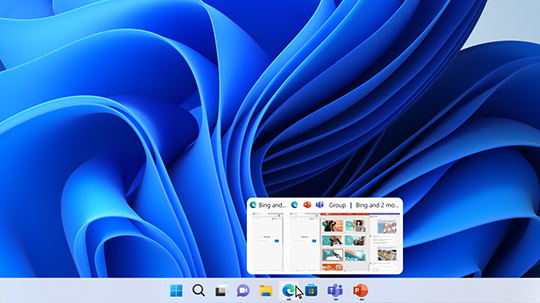
Windows taskbar previews let users identify the exact window they want by just hovering over the app icon.
Minimising into the application icon makes the Dock cleaner (System Settings > Desktop & Dock > Minimise windows into application icon), but it exposes the same flaw more harshly. If you minimise two windows from the same app, only the most recently minimised one comes back when you click the Dock icon. After that, the others are effectively invisible. There is no badge, no stack, no preview, no hint that anything still exists behind that icon. That is bad design.
Command-Tab has the same blind spot. An app switcher is not enough for multi-window, multi-display workflows. Safari, Finder, Excel, Preview, Slack, and a code editor might each have several windows spread across displays, Spaces, and minimised states. Command-Tab shows app identities, not actual destinations. Often it saves no time because it lands me in the wrong window and creates one more step.
Windows solved this years ago with a visual, window-centric switcher. macOS should keep classic Command-Tab for people who prefer it, then add a first-party visual window switcher beside it, ideally on Option-Tab, with previews, titles, minimised windows, and sane keyboard navigation.
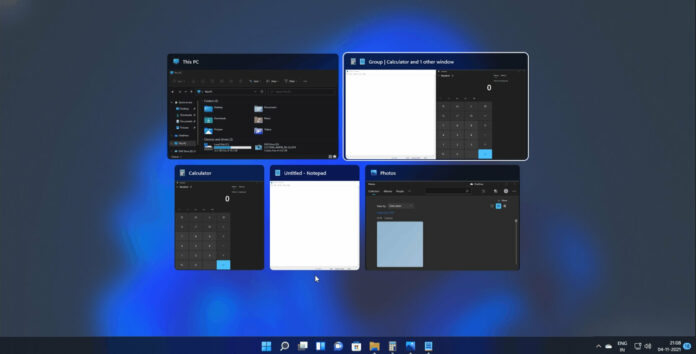
Windows Alt-Tab is visual and window-centric, not just app-centric.
Mission Control and App Exposé feel like half-finished adjacent ideas rather than a well-connected system. That is especially frustrating because Apple was early here: Exposé arrived in 2003, and App Exposé has existed in recognizable form since Snow Leopard in 2009. There is a real irony in that. Apple often seems to prefer not being first, but being better. Here, Apple was first, then got overtaken, and never really came back to catch up. Windows has long since caught up and, in some ways, overtaken macOS, and a lot of Linux desktops have too. Windows Alt-Tab is now better than Command-Tab.
Windows also handles its virtual-desktop overview more cleanly: desktop previews are just there, with obvious controls, instead of making you hover at the top of the screen and hunt for tiny plus buttons in the screen corner. And even after all these years of Mission Control, these views still do not expose basic window controls in any obvious, direct way. If I can finally see the exact window I want, I should also be able to close it or minimise it right there.
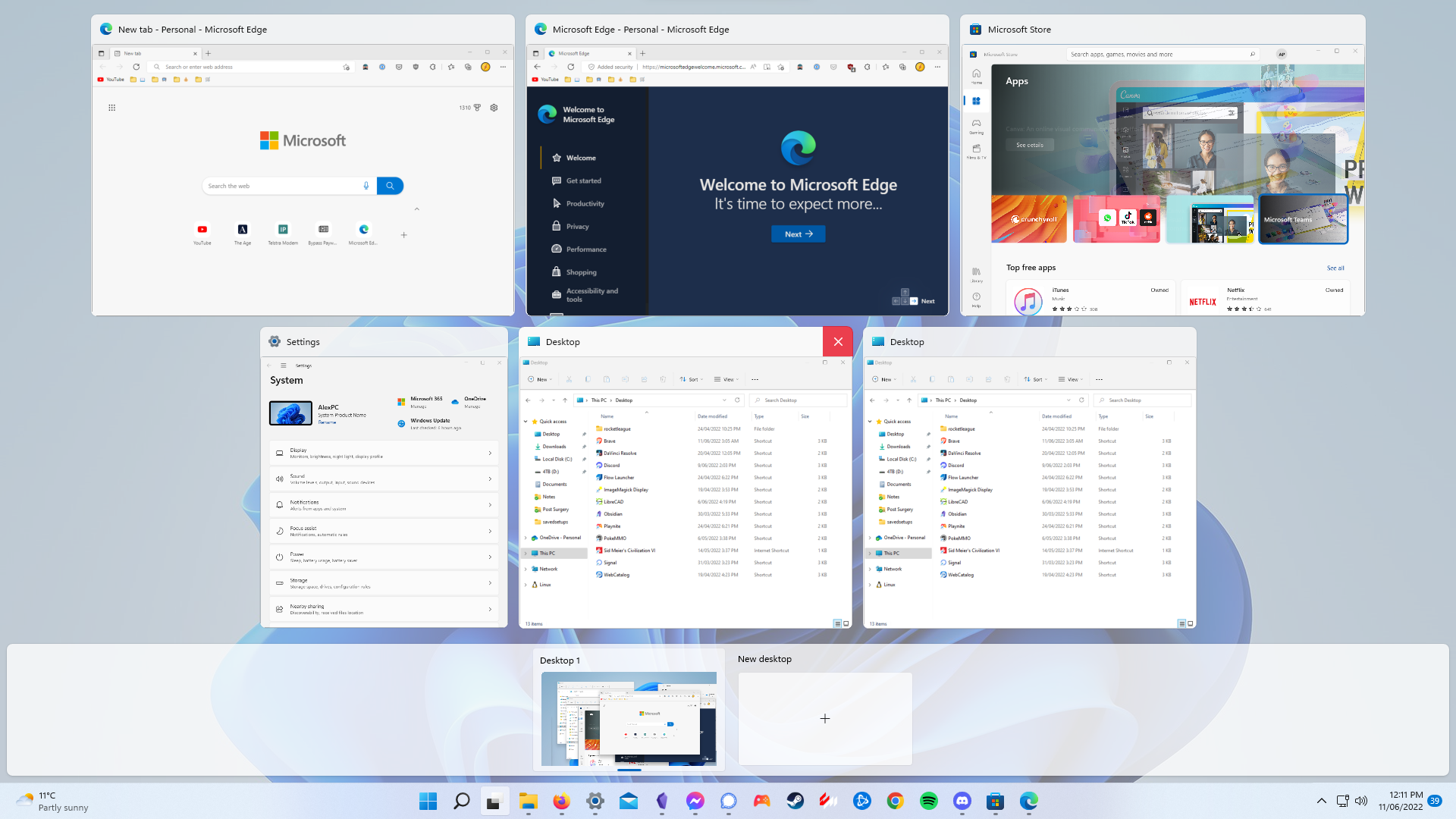
Windows Task View (the equivalent of Mission Control) uses space more logically and keeps desktop controls visible.
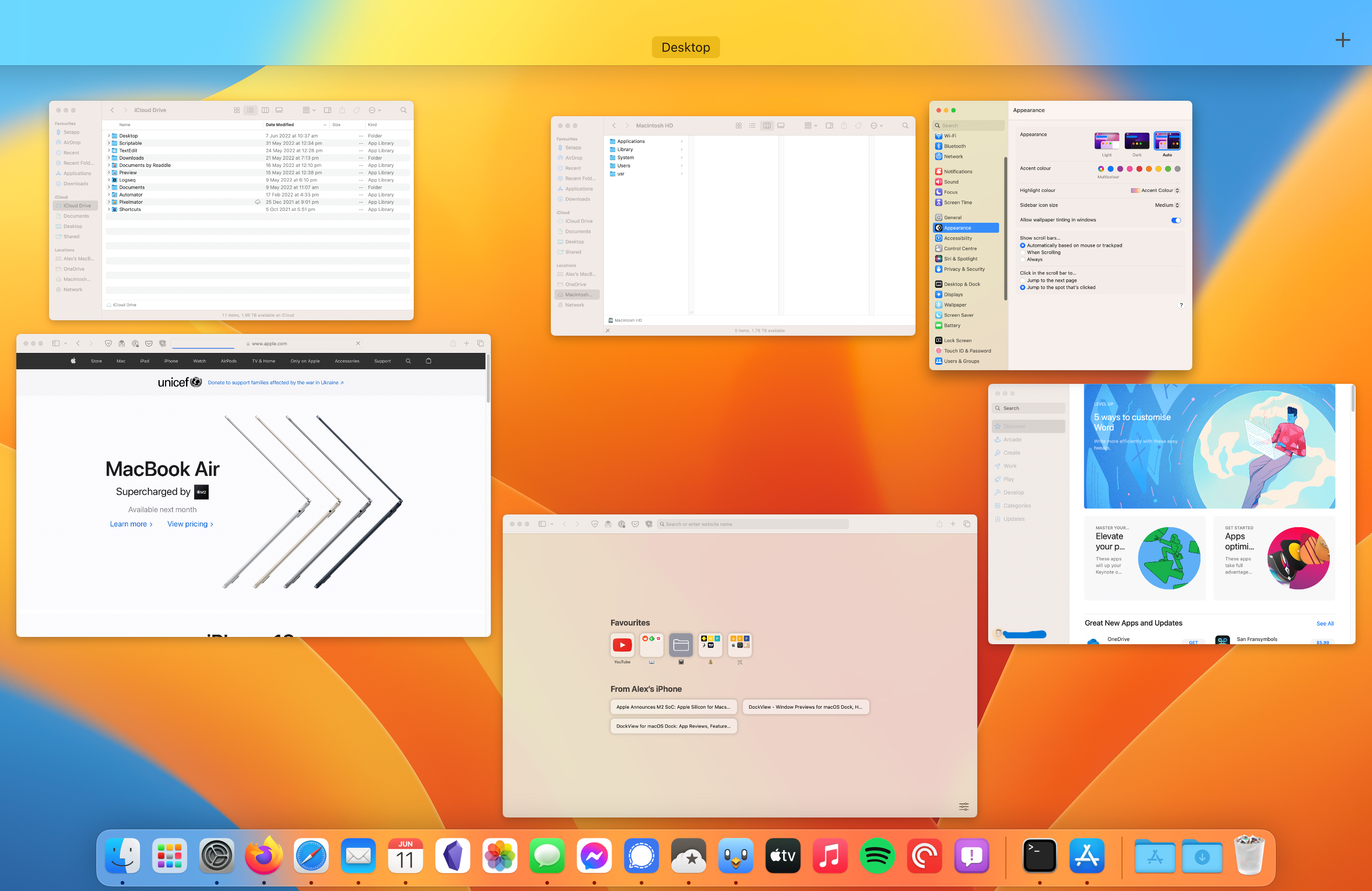
Mission Control often scatters windows with awkward spacing and too little information.
Grouped Mission Control looks nicer at a glance (System Settings > Desktop & Dock > Group windows by application), but the way it expands groups is still awkward and poorly signposted. If windows are grouped by app, clicking an app’s group or icon should just open a nested App Exposé view for that app instead of relying on obscure gestures and unusual expansion behaviour.
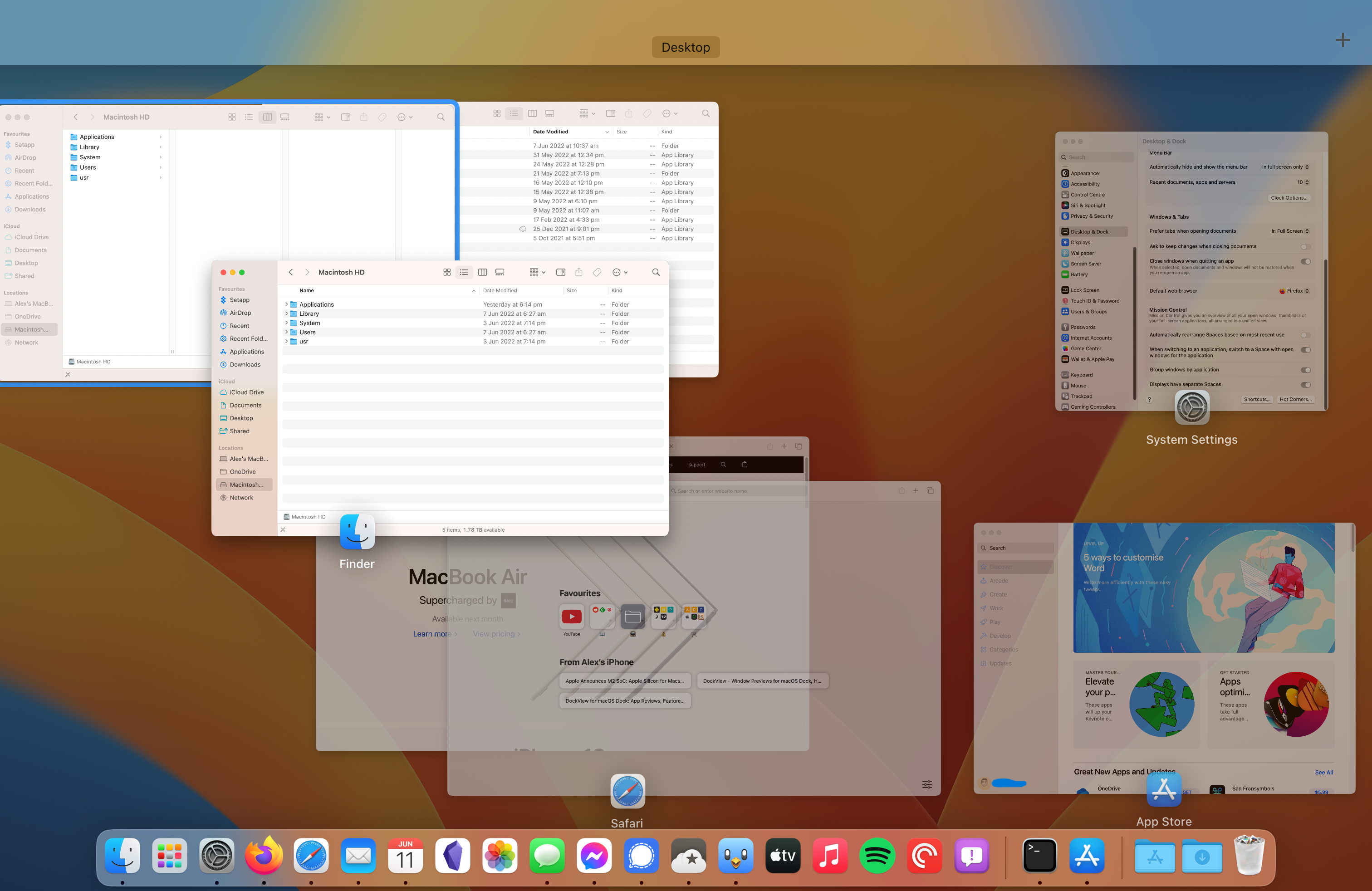
Grouped Mission Control looks cleaner at first, but expanding groups is still obscure and visually messy.
App Exposé is much more coherent. It at least has some basic arrow-key navigation, presumably because the windows are laid out in a more logical order. Mission Control offers no keyboard navigation at all.
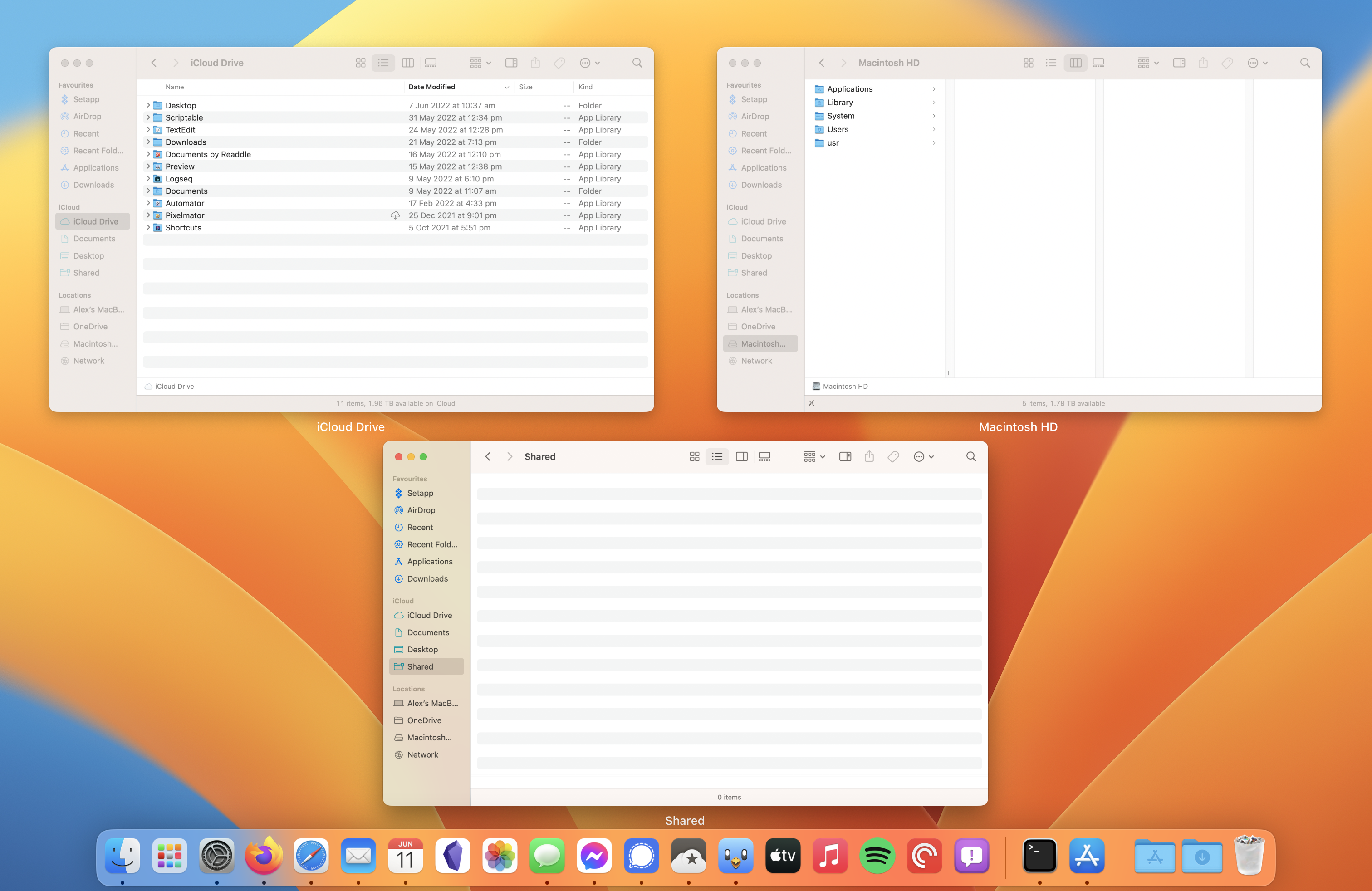
App Exposé is much clearer than Mission Control, which is part of why the gap between them feels so strange.
There is an even bigger opportunity here too. Mission Control, App Exposé, Command-Tab, and some future Option-Tab view could be cleaned up into one broader “get me somewhere” system, whether Apple keeps the Mission Control name or not. It could combine visual switching with text search for running apps, open windows, and tabs, almost like a more focused Spotlight for things already active on the Mac. A true Mission Control v2 could keep app-level switching, make app-specific windows and tabs easy to reach, and finally offer first-class keyboard control instead of scattering similar ideas across overlapping systems.
And if Apple really wanted to push this further, Mission Control v2 could become a place for smarter grouping too. Imagine being able to drag windows onto each other to merge them into a higher-level task group, or combine a browser window, a spreadsheet, and a notes app into one abstracted super-window for a specific piece of work. Inside that container, maybe the app windows specific to that task could be tabs. Or they could be swapped between easily using the super-window, or placed side by side or on top of each other in tiles, but still within the super-window abstraction. That starts to move beyond today’s awkward split between ordinary windows, Stage Manager groups, Spaces, and app-specific tab systems. It would be a little like a tiling window manager, but in a more elegant macOS way. I can easily imagine running these as full-screen Spaces on a laptop and ending up with a much more capable task machine built around groups of apps organised in intuitive ways.
I do not think we should act as if desktop operating systems are basically finished. Most people still spend all day in them at work. Apple of all companies should be able to improve these stale systems in ways that better reflect how people work now: more browser-based, more tab-based, and more multi-app-task-based than before.
At a minimum, I think Apple should:
- Make Dock clicks activate App Exposé whenever an app has more than one open or minimised window.
- Add a visual window switcher as a peer to Command-Tab, not a replacement for it.
- Make grouped Mission Control the default, and make it obvious that App Exposé is the nested view for the selected app instead of the current obscure expansion behaviour.
Window enlargement should be consistent
macOS still makes the basic act of making a window bigger needlessly inconsistent. Single-clicking the green button enters full screen. Option-clicking it Zooms. Double-clicking the title bar can Zoom or Fill depending on the setting in System Settings > Desktop & Dock. Dragging a window to the top Fills it. Finder and Safari are still the two Apple apps that “Zoom” by growing to fit their content rather than simply maximising the window. Why? I’m sure Siracusa knows. Even the reversibility is inconsistent: a Zoomed window can un-Zoom with a double-click on the title bar, but a Filled window cannot un-Fill the same way.
Sequoia’s tiling additions did not really clean this up. The settings for “Drag windows to menu bar” and “Drag windows to top of screen to enter Mission Control” in System Settings > Desktop & Dock inherently conflict and should not both be active as separate toggles. If both are on, getting the intended action becomes fiddly. Even with “enter Mission Control” disabled, dragging to the top still has a noticeable ~100ms delay before the Fill preview appears, while dragging left or right for half-screen tiling gives immediate feedback and feels much better.
I think Apple could clean a lot of this up pretty simply:
- Retire Zoom.
- Make Fill the standard “make this window bigger” action.
- Make double-clicking the title bar toggle Fill on and off consistently.
- Let users choose whether a single click of the green button defaults to Fill or Full Screen, and make Option-click do the opposite.
- Combine the conflicting top-edge drag settings into one dropdown, make Fill the default, and remove the delay before the Fill preview appears.
Scrolling should be per device
The linked “Natural scrolling” setting between Mouse and Trackpad is one of those tiny macOS decisions that feels broken the moment you watch a real mixed-device desk. A very normal setup is a MacBook on a stand, an external display, a regular mouse for all-day pointing, and the built-in trackpad still being used constantly for gestures. Natural scrolling can feel completely right on the trackpad and completely wrong on the mouse, or vice versa. They are different devices with different physical metaphors.
On macOS, changing the toggle on one settings page silently changes it on the other. Users often discover the linkage later, which makes the system feel slippery and untrustworthy. Mouse and trackpad should have independent scroll-direction settings. Full stop.
Finder should work like a real file manager
Finder still does not offer a normal, explicit cut-and-paste workflow for files. Yes, technical users know about Copy followed by Option-Command-V to move files, but that is exactly the problem: it feels like a hidden workaround instead of a basic file-management action. A platform this mature should just let users cut a file, paste it somewhere else, and move on.
Finder also still treats path input like an obscure feature instead of a normal part of file management. In Windows, people use the File Explorer path bar all the time to copy and paste network paths, jump to shared folders from other users, and move around quickly without needing to click through nested directories. That is not some niche power-user trick. I see it constantly in the real world.
On the Mac, the closest equivalent is the very hidden Go > Go to Folder…, and even the existing path bar is tucked away under View > Show Path Bar. Finder should just show a proper path bar by default, and it should be a Path Bar v2 that also incorporates direct path entry like Go to Folder. These are basic things Windows switchers will expect, and they are exactly the kind of small friction points that make macOS feel less practical than it should.
Menu bar clutter should be manageable
The menu bar still handles icon clutter badly, especially on smaller displays and laptops with notches. Install a handful of apps and menu bar items start piling up, disappearing, or forcing the user into constant icon housekeeping. Apple should build what Bartender and Ice proved people want: let users pin some icons, hide others, and put the rest behind a clean overflow area.
Animation speed should be configurable
I like good animation when it communicates something. On macOS though, some animation just feels slow, especially when moving between Spaces. If Reduce Motion is enabled, I think all animations should essentially become instant, or at least incredibly fast. I think there is room for a default, fast, and instant setting for motion reduction across all of Apple’s platforms. macOS users who want to move really fast would often prefer no animations whatsoever.
Sound controls should work per app and per device
Two smaller audio gaps come up a lot. The first is per-app volume control. If Safari is too loud but music is fine, or Zoom needs to be louder than everything else, the system should handle that from the menu bar or Control Center.
The second is volume-key support for USB audio interfaces, DACs, speakerphones, and other external audio devices. A lot of these devices work on the Mac, but the keyboard volume keys often do not behave the way users expect, or need extra help from third-party software.
That is part of why SoundSource is so useful: it covers both problems at once. It gives users per-app audio control, and it can help make external audio hardware feel more normal on macOS by bridging gaps in system audio routing and device control. Some of that may be the hardware vendor’s fault, and some of it may be hard to solve perfectly. But the broader point remains: this is useful enough that more of it should be built into the OS.
Conclusion
None of these are exotic requests. Most are basic desktop features that other operating systems already do better, or areas where macOS already has half of the right ingredients but stops short of the obvious finish line.
I vibe coded workarounds for two of the smaller issues myself in just a few days, and I’m not a “real” software developer. I made Macsimize to make the green button and title bar maximise properly, and Dockmint to make it easier to get back to the specific windows you want from the Dock and perform more advanced actions there. The popularity of tools like AltTab, DockDoor, BetterDisplay, MonitorControl, Bartender, Ice, and SoundSource shows that the demand is already there.
These all feel fixable. That’s why they’re frustrating, but it’s also why I’m optimistic about them.
Since Ventura, window snapping has improved, but a surprising amount of the rest still feels stuck. That is what makes macOS frustrating here: functional productivity features arrive at a glacial pace even when the underlying problems, especially compared with Windows and Linux, have been obvious for years to anyone who regularly swaps between these platforms.
What also frustrates me is that I do not see meaningful downside trade-offs in any of the changes I am suggesting. Taskbar-style window previews do not make Windows harder to use. Per-device scrolling directions do not make Windows worse, they make it better. These things are just useful. On a desktop platform that has existed in its current Unix-based form since 2001, most of these features and functionality improvements should be table stakes by now, especially on a platform so often positioned for both power users and mainstream consumers. At this stage, users should be getting more options to tweak the system exactly how they want, not the same number of options or fewer.
That matters even more if Apple wants to push into cheaper, more mainstream Mac price points and win over people coming from budget Windows laptops. If someone buys a lower-cost Mac after years on cheap PCs, macOS should not feel less functionally capable than the desktop OS they just left. Those users will reasonably expect basics like window previews, collapsible menu bar icons, sensible multi-display support on hardware docks they already own, and a normal maximise button. Windows has had workable versions of these things for many years, so Apple needs to catch up. By my own experience, and by what I keep hearing from others, Macs are still harder to use than Windows in too many practical ways, both in software and in hardware compatibility.
I hope that changes. Recent reporting on Apple suggests the company now relies heavily on Anthropic’s Claude for internal product development and tooling, with custom Claude instances reportedly running on Apple’s own servers (9to5Mac). If that is true, then maybe tools in the Claude Code era can help Apple move faster on practical macOS improvements instead of letting another decade slip by with minimal productivity improvements to macOS.